
How To Order Your Fresh Fruits And Vegetables From CSA Lunar Rhythm Gardens: A Step-by-Step FAQ
Frequently Asked Questions
Welcome to our Frequently Asked Questions page! Here, you’ll find all the essential details to make your experience smooth and rewarding, whether you’re signing up for the first time, managing your subscription, or customizing your deliveries. Learn how to sign up, change pick-up locations, add custom selections and extras, understand our CSA versus Farm Stand offerings, and more. Our FAQ is designed to help you navigate your account and services seamlessly, ensuring you maximize your involvement in our community-supported agriculture program. Got a question? We’ve probably answered it here! If you need further assistance, please feel free to contact us.
How to Place your Order!
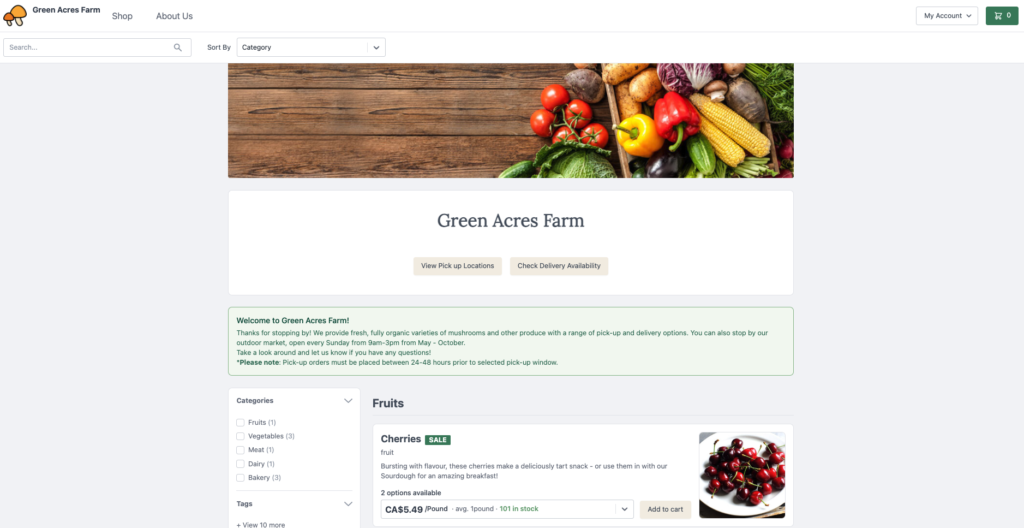
- Use the search, sort filters, categories and tags to find what you are looking for quickly.
- To see more product detail, click on a product in the listing. You can add the product to your cart from this view or return to the Shop tab by clicking it along the top of the page.
- On the Shop tab, click Add to cart on a product to put it in your cart.
- Use the quantity controls to increase or decrease the quantity.
- When you are ready to check out, click the green cart icon in the top right.
- Click Go to checkout.
- Specify Info and delivery settings.
- If you are logged in, skip to step 7.
- If you are not logged in but you have an account, in the Contact section click Log in, enter your credentials and then click Login.
- If you want to check out as a guest, in the Contact section enter your Email if you want to checkout without creating or logging into your account.
- In the Select fulfillment option box:
- Click the radio button to select the most convenient option for yourself.
- Select a date.
- Add a note if there you have any special instructions or requests.
- Click Continue to payment.
- Specify Confirmation & payment settings.
- If you have a store credit balance and you want to apply it to your order, click Apply store credit balance to order. Note: Even if your store credit balance covers the full amount of your order, you must still click the Place order button to place your order.
- If you change your mind and want to remove store credit from your order, click Remove store credit from order.
- If you choose a credit card method, enter your Credit card number, Expiry, and Security code.
- If you have a product that requires approval, such as a product sold by weight (meat, cheese), your card is only authorized at checkout. Your card is authorized for +/- 15% the total of your order. Payment is processed later after we have the actual weight of the product. You cannot apply store credit to an order with a product that requires approval.
- In the Select payment method section, click the payment method you prefer.
- If you see a Pay later option it means that you must pay for your order by the due date that is indicated. Your emailed invoice includes a link to your Order history page where you can go to pay for your order by credit card. If you have not registered an account yet, you are prompted to do so to access this page.
- In the Billing address section, click to the radio button to Use a different billing address, if applicable.
- If you have registered an account and selected a credit card payment method, check the box next to Save my information for a faster checkout next time in the Remember me section. This puts your credit card on file so that we can charge your card on your behalf for future orders.
- If you have saved one or more credit cards to your account, they are displayed as a list of radio buttons. You also have the option to save a new card at check out by selecting the Use a different card option.
- Click Place order. The confirmation screen displays a summary of your order, and an email is sent to your inbox with the details.
If you need to change your order, use the contact information in your order confirmation email to reach us.
How to Modify an Order
You can modify any order that has not yet been marked as received.
- Go to the Orders page.
- Find the order you’d like to update (use filters or search if needed).
- Click the View button on the right side of the order row.
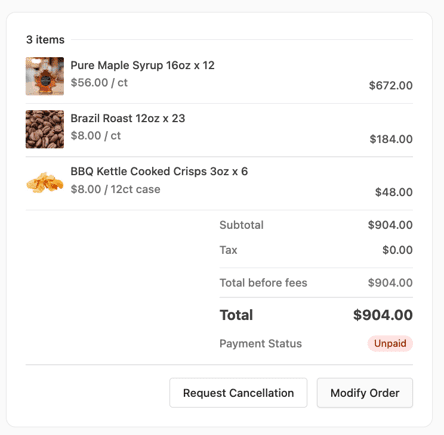
- On the order detail page, click Modify Order. Editable fields will be available for:
- Product quantities
- Notes or special instructions
- Removing or adding items (depending on settings)
- After making your changes, be sure to hit recalculate total or and save your changes as prompted.
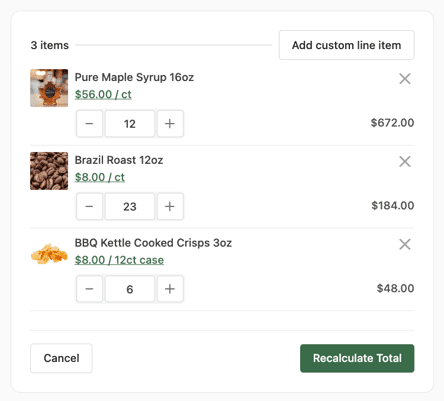

Once an order has been marked as Received, it is locked for editing. You’ll need to contact the supplier or admin if changes are needed after that point.
I forgot to confirm or wasn’t done with my order and now I can’t find it in my cart:
When you order as a regular farmstand customer, you have to confirm your order once you’re done shopping. If you were not done with shopping and wanted to come back to it at a later point, or you were reminded by an email that you still have an unconfirmed order in your cart, but your cart is empty, go to your ‘Overview‘ tab in your profile. You should find your order here and it will appear once again in your cart when you click “View Order“.
I want to modify my order but can’t find it:
As long as the ordering period is still open, you can keep going back to your order to customize it, even if you had confirmed it previously. If you can’t find your order in your cart, check your “Overview” tab in your profile. You will find your order here.
When and Where can I pick up an order?
Summer:
| On Farm | Saturday & Tuesday (11am – 6pm) |
| Bowmanville | Tuesday (5pm – 6:30pm) |
| Lindsay | Tuesday (5pm – 6pm) |
| Whitby | Wednesday (10am – 3pm) |
| Brooklin | Wednesday (5pm – 5:30pm) |
| Peterborough | Thursday (4:30pm – 5:30) |
| Port Perry | Friday (4:30pm – 5:30pm) |
| Port Perry Farmers’ Market* | Saturday (8am – 3pm) |
*only for Farmstand customers
Winter & Spring:
| On Farm | Saturday (11am – 6pm) |
| Lindsay | Saturday (5pm – 6pm) |
| Peterborough | Saturday (7am – 1pm) |
| Whitby | Monday (3:30pm – 4:30pm) |
| Prince Albert | Monday (5pm – 6pm) |
To see the address for each location, please refer to the home page or the subscription page on our website.
How do I know if I’m signed up for a share?
You’ll get a confirmation e-mail after successfully subscribing to a share. You can also always check your “Subscription” tab in your profile to see which shares you are subscribed to.